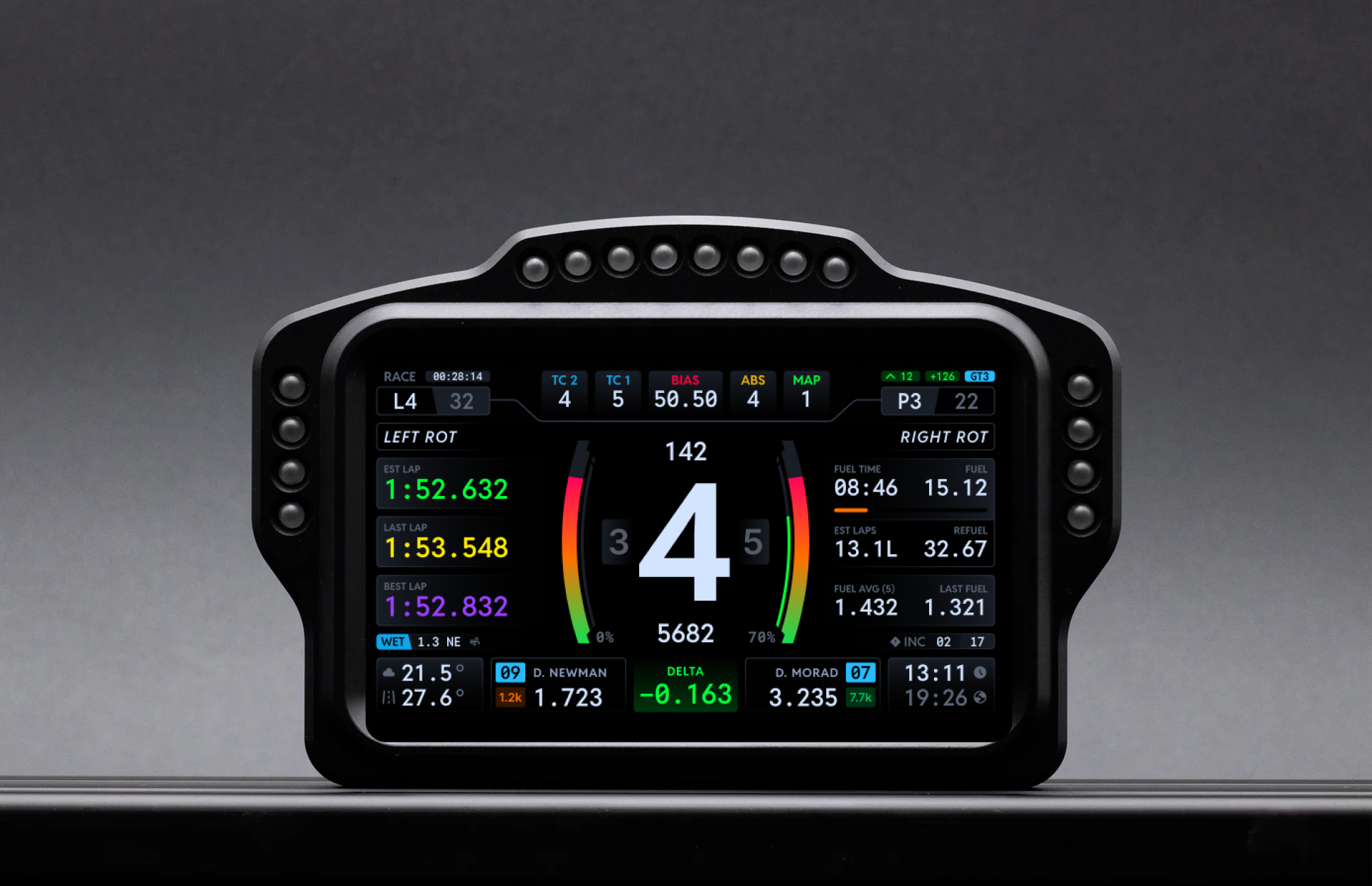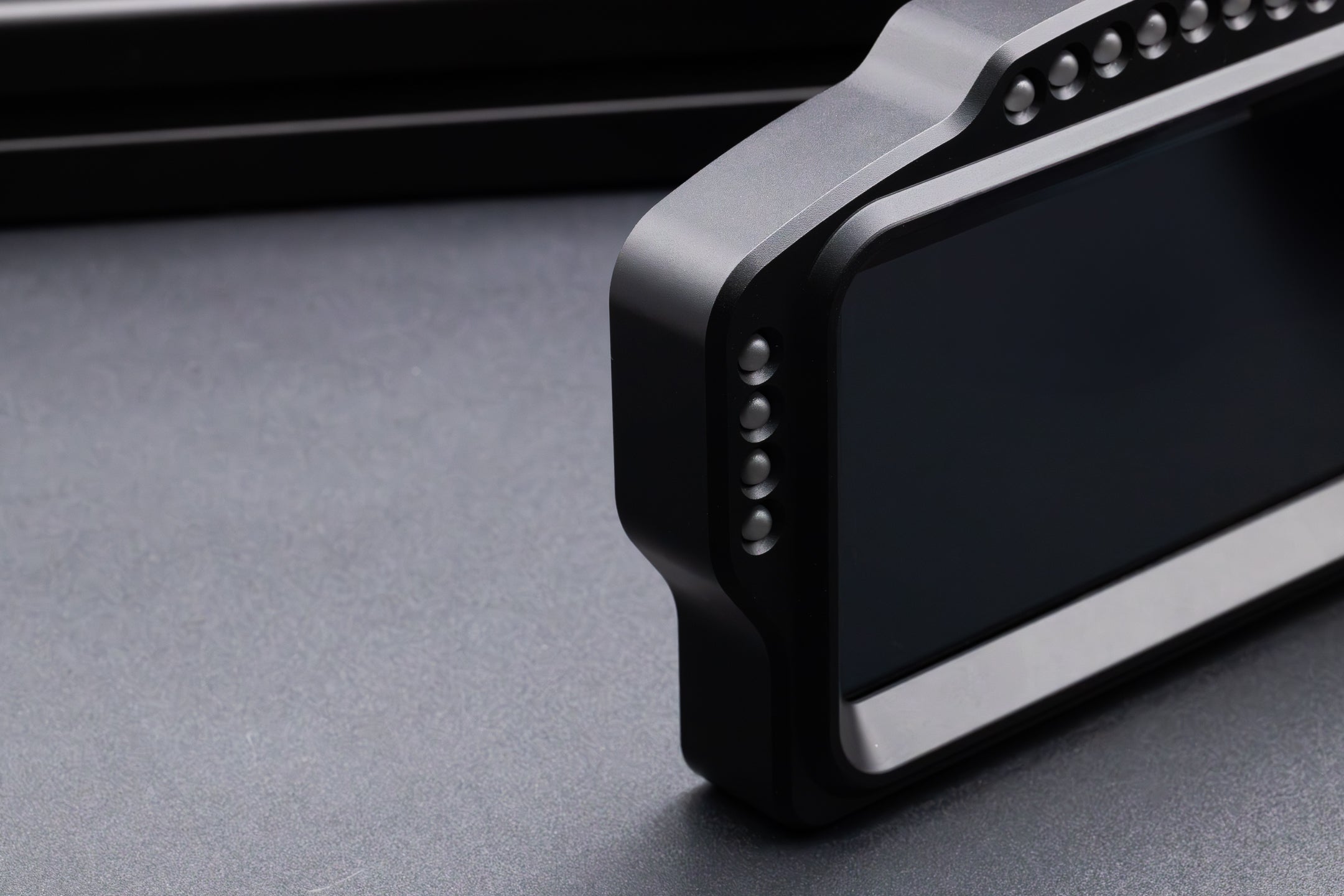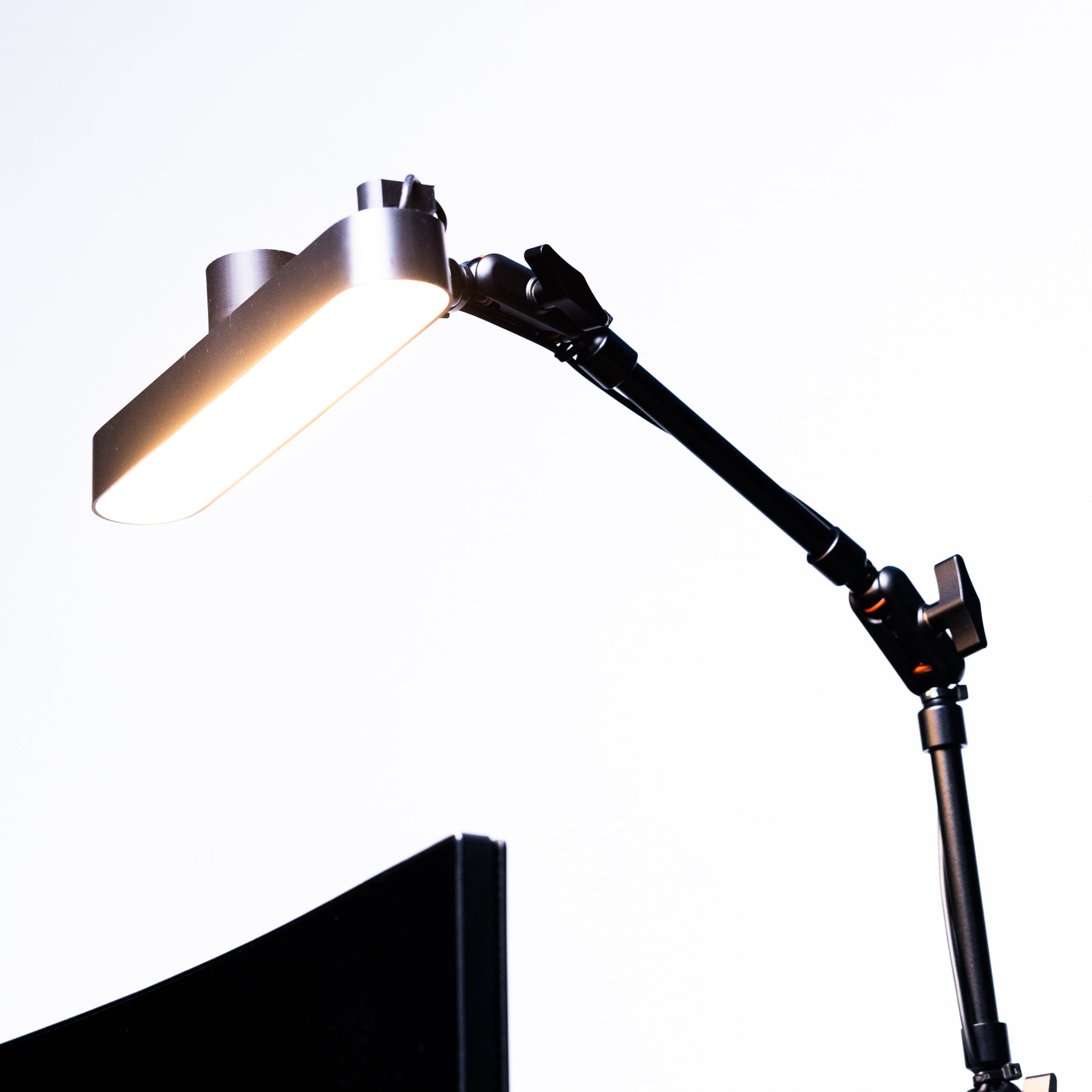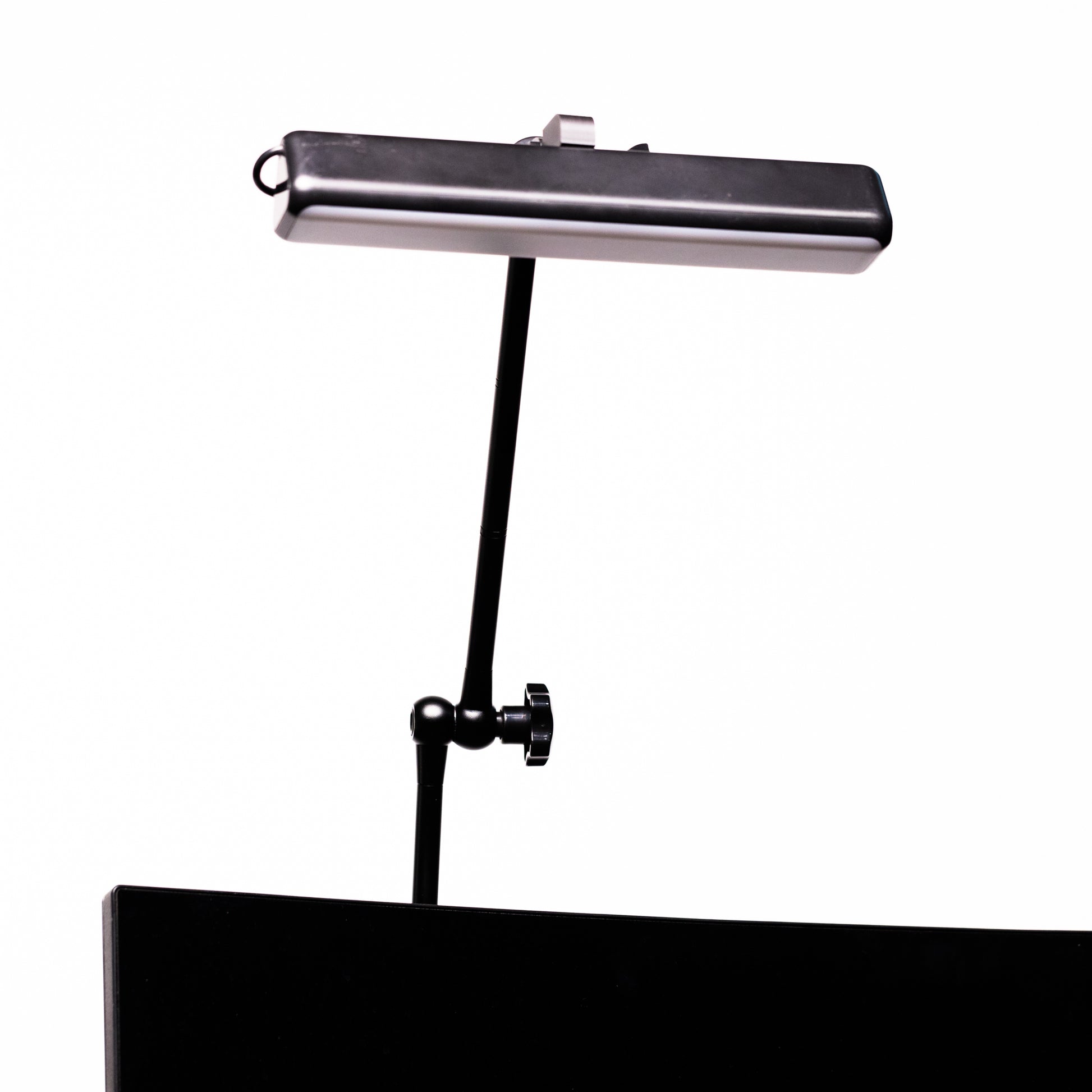
This article explains how to set up your SSG Flag Box Display DF-8 with SimHub and install DNR profiles for both Single and Duo flag configurations.
Table of contents
- 1. What's in the box?
- 2. SimHub setup
- 3. DNR profile setup for a single flag
- 4. DNR profile setup for duo flags
- 5. Troubleshooting
1. What's in the box?
Single configuration:
- 1 SSG DF-8 Flag Box Display
- 1 USB-A to USB-C cable
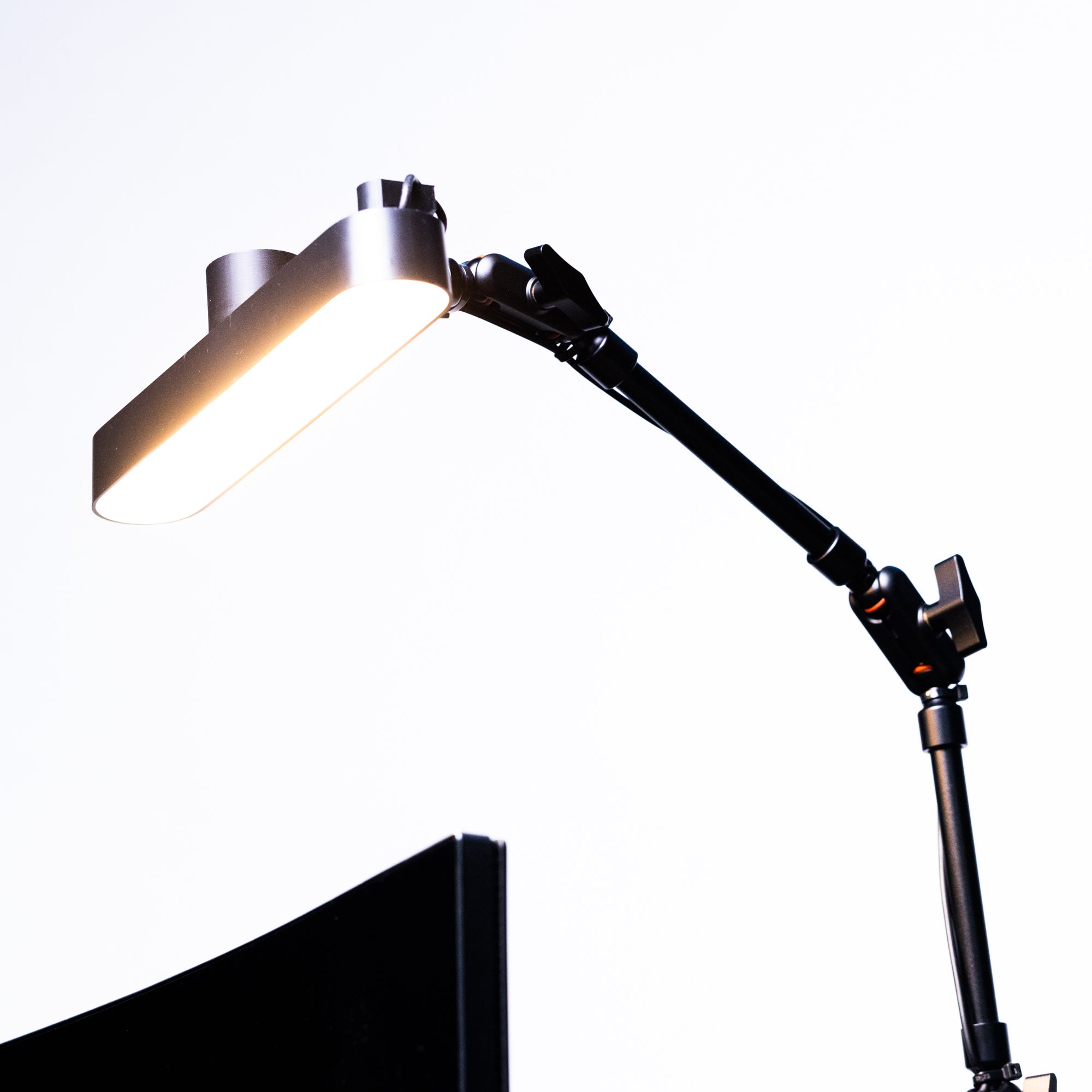
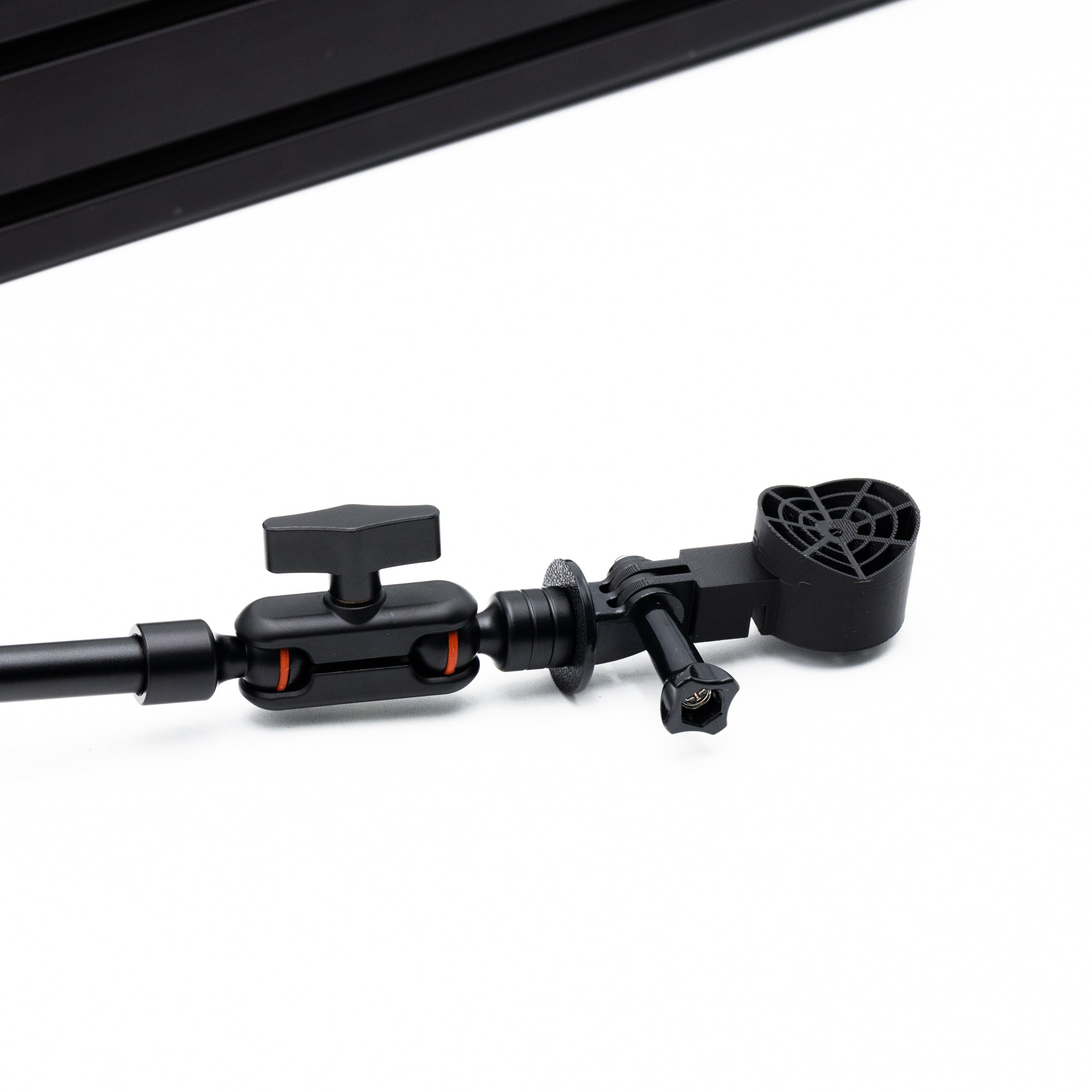
- Swivel mount with hardware. Standard, 3 inch, or 6 inch Premium Arm depending on your variant
- DNR Premium access code card
Duo configuration:
- 2 SSG DF-8 Flag Box Displays
- 2 USB-A to USB-C cables
- Mounting hardware for both units
- DNR Premium access code card
Keep your DNR access code card handy. You will need it in section 3.
2. SimHub setup
Download and install SimHub. SimHub is free software that sends race data from your simulator to the DF-8. Download the latest version from simhubdash.com and run the installer.
Connect the DF-8 to your PC. Plug the USB cable into the DF-8 and into a USB port on your computer. For Duo setups, connect both units to separate USB ports before launching SimHub. Do not use a USB hub.
-
Find the DF-8 in SimHub. Open SimHub and go to the Arduino section in the left sidebar. The DF-8 appears as a connected device. Duo units each show their own COM port.
Screenshot placeholder: SimHub Arduino section with the DF-8 detected
-
Map the flag functions. In the DF-8 configuration, map the display outputs you want: yellow flag, blue flag, red flag, green flag, white flag, pit limiter, gear display, and low fuel warning.
Screenshot placeholder: flag output configuration
Enable the proximity spotter. Turn on the proximity spotter in the DF-8 configuration and set the alert distance. A threshold of 3 to 5 meters works well for most cars.
Test with your simulator. Launch your sim and join a session. Trigger a yellow or blue flag situation and confirm the DF-8 lights up in the matching color within a second.
3. DNR profile setup for a single flag
DNR Premium flag profiles are included free with every DF-8. They include calibrated flag colors, animation timing, and dark mode presets.
Create a DNR account and redeem your code. Register on the DNR website, open the redeem code section of your account, and enter the code from the card in your DF-8 box.
-
Download the DF-8 Single profile pack. In the DNR profile library, search for SSG DF-8 Single and download the pack. It contains profiles for all major simulators.
Screenshot placeholder: DNR library showing the DF-8 Single pack
Import the profile into SimHub. Extract the download. In the SimHub Arduino section, click Import profile and select the file that matches your simulator. Apply it to your DF-8.
Set up dark mode if you want it. The DNR profile includes 4 preset dark mode color schemes plus 1 customizable slot for night driving and endurance sessions. Enable it in the profile settings.
4. DNR profile setup for duo flags
This section applies to the Duo configuration only. If you have a single DF-8, skip to section 5.
-
Confirm both units are detected. Both DF-8 units must appear in the SimHub Arduino section, each on its own COM port. Write down which port belongs to which physical unit. A small piece of tape on each unit helps during setup.
Screenshot placeholder: two DF-8 units on separate COM ports
Download the DF-8 Duo profile pack. In the DNR library, search for SSG DF-8 Duo. The pack contains a Left profile and a Right profile. The Left unit handles flags and the spotter, and the Right unit handles gear, fuel, and telemetry.
Apply the Left and Right profiles. Import both files into SimHub, then assign the Left profile to the left unit's COM port and the Right profile to the right unit's COM port.
Verify the split. Join a session and confirm the left unit shows flag and spotter information while the right unit shows gear and fuel. If they are swapped, reverse the profile assignments in SimHub.
Match your dark mode. Dark mode is set per unit. Apply the same preset to both units so they stay visually consistent.
5. Troubleshooting
Flags are not triggering.
Check that SimHub supports and detects your simulator. Some titles need a plugin from the SimHub website. Confirm the flag outputs are mapped in the Arduino section.
One unit in a Duo setup is not responding.
Check that both COM ports are active in Windows Device Manager. Unplug and reconnect the silent unit, then reselect its COM port in SimHub.
The display flickers or resets mid session.
This is usually a USB power issue. Move the cable to a port directly on your motherboard and avoid hubs and front panel ports.
The proximity spotter triggers too often.
Increase the alert distance in the DF-8 configuration. Around 5 to 8 meters suits most racing.
Still stuck?
Contact us with your order number and your configuration, Single or Duo, and we will help you out.