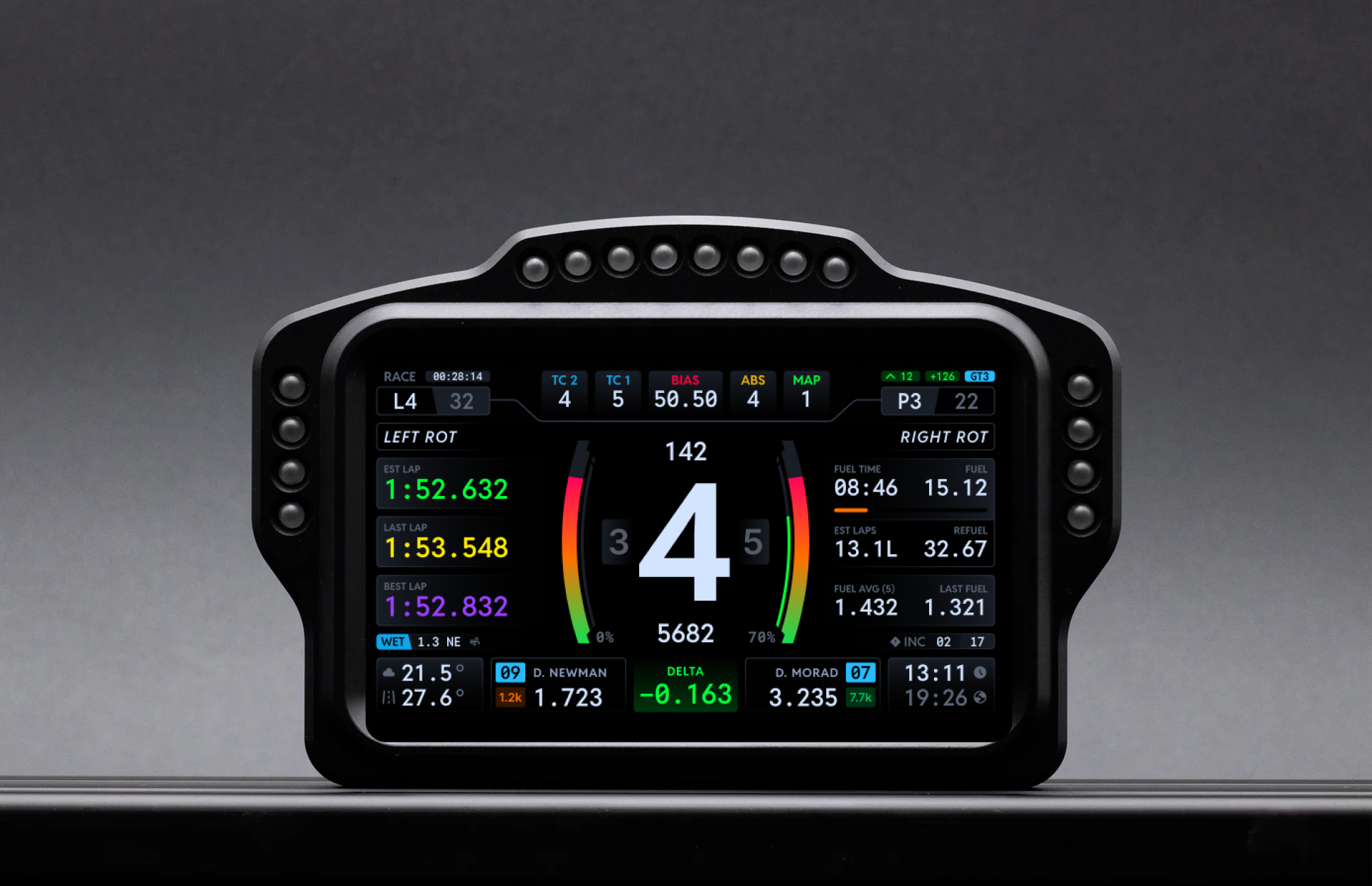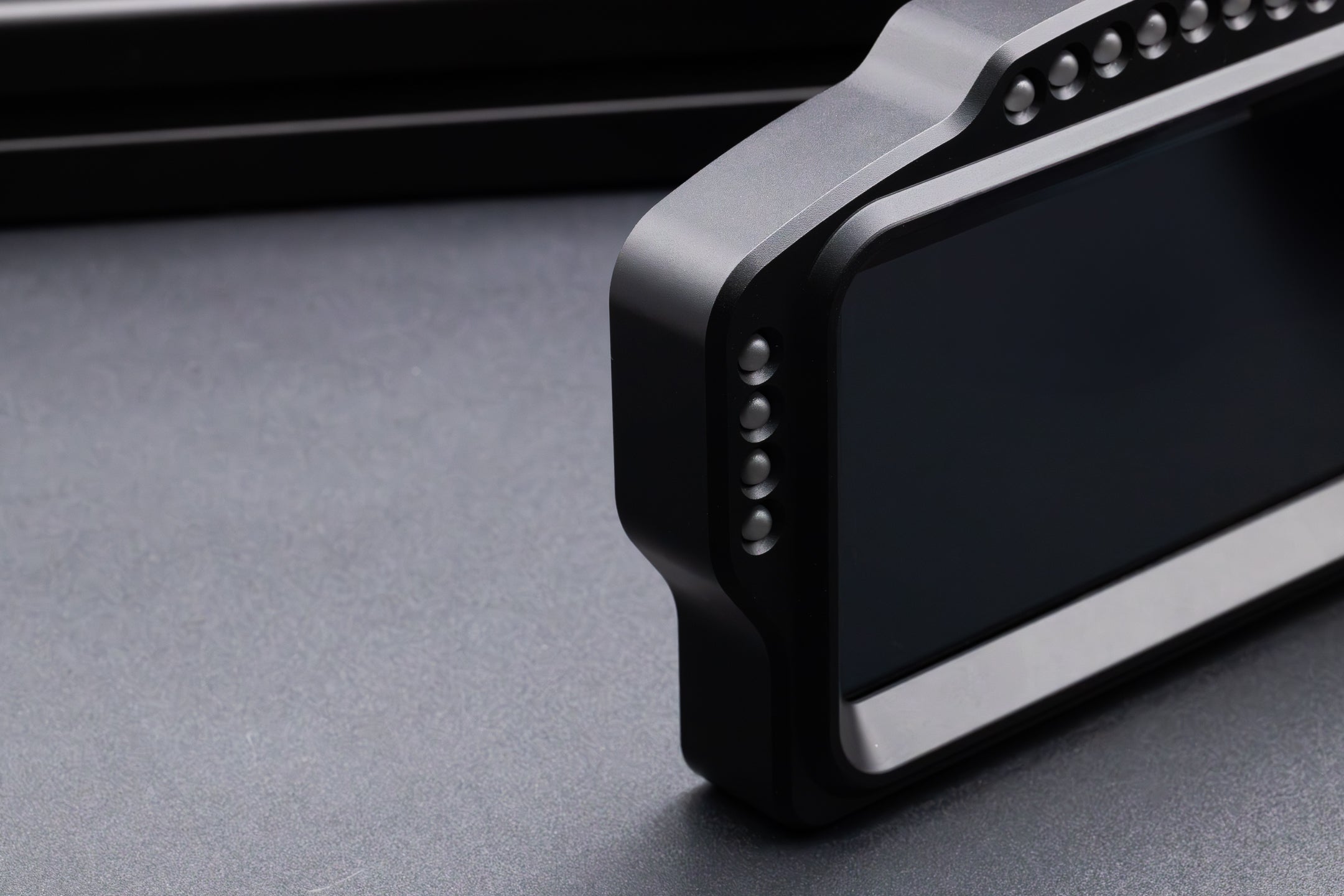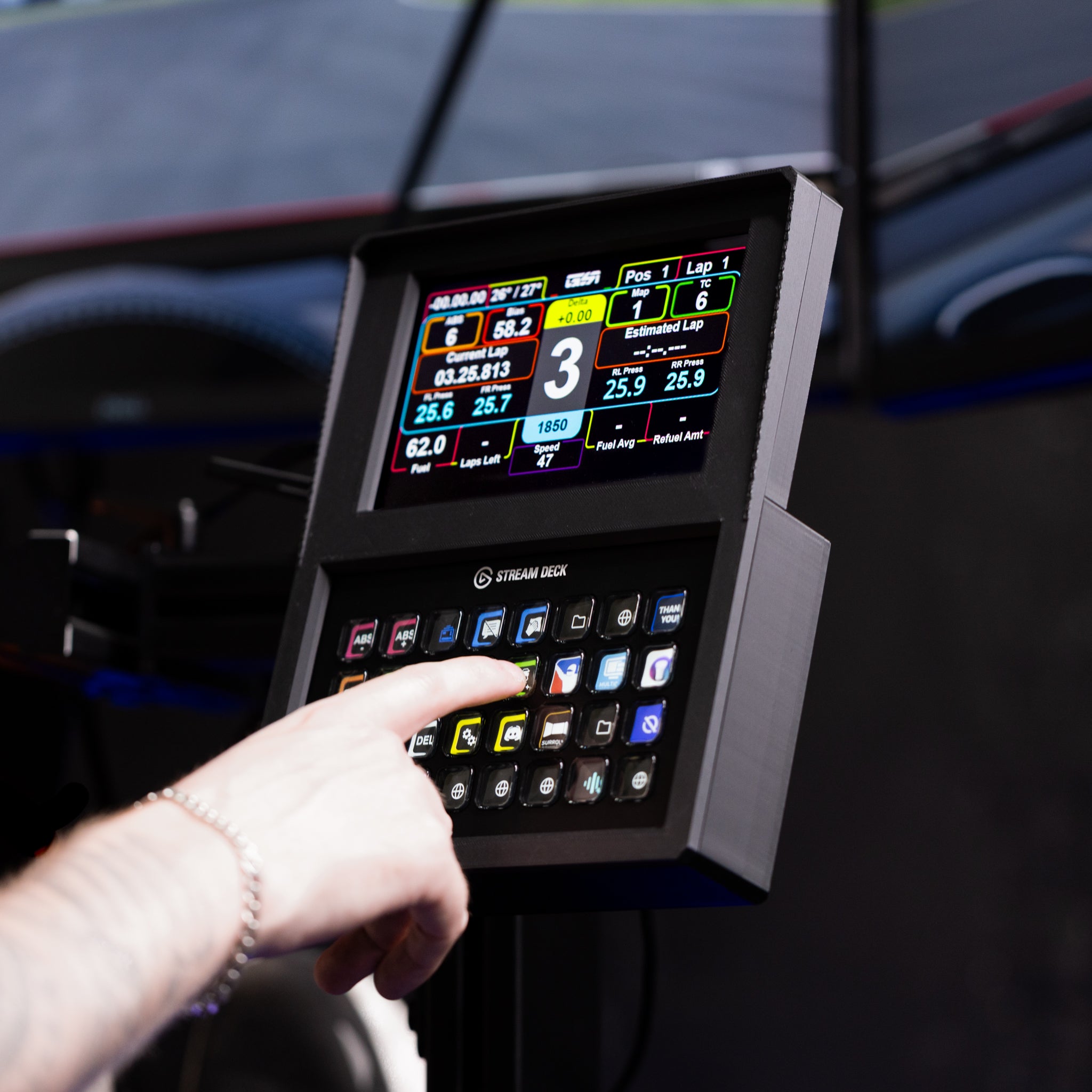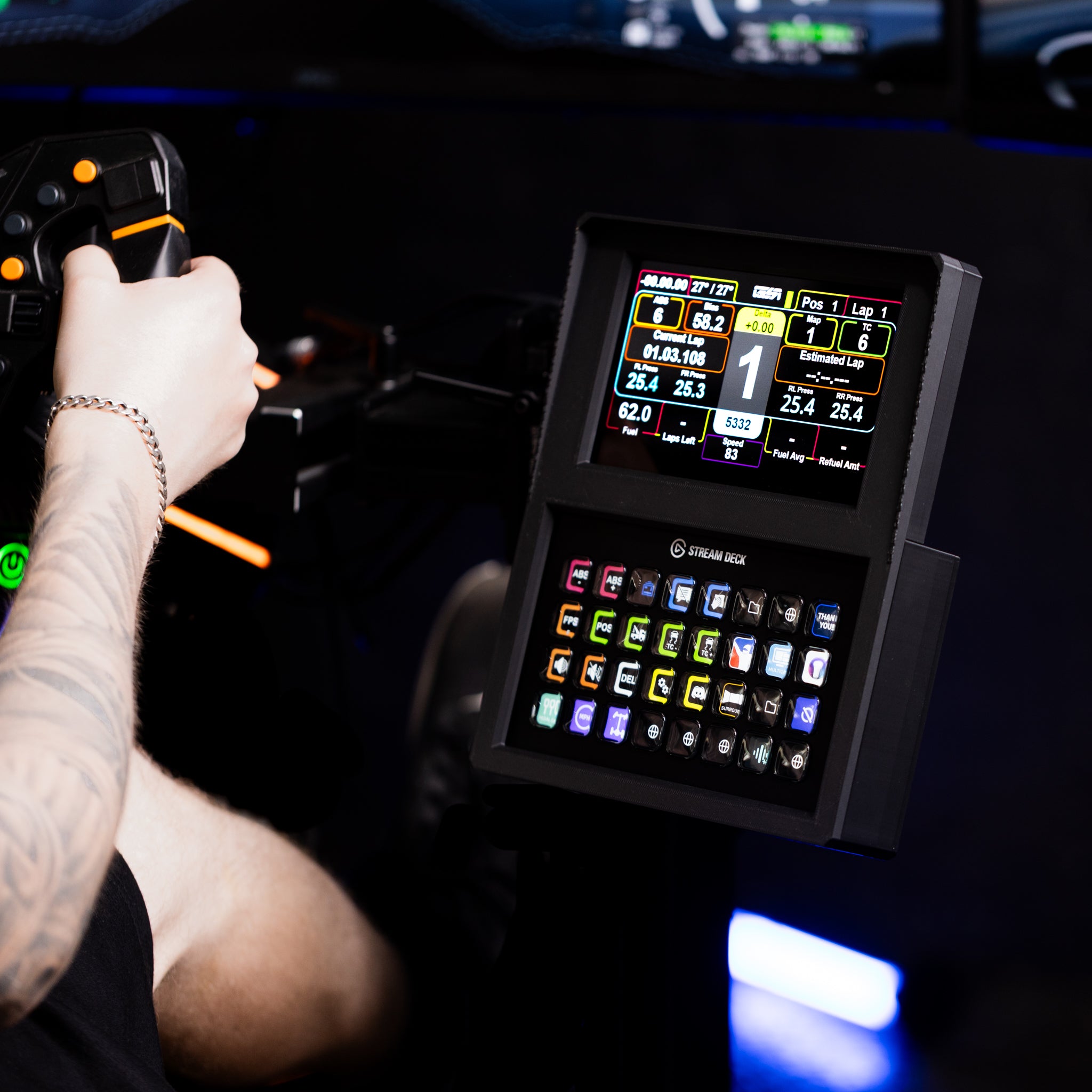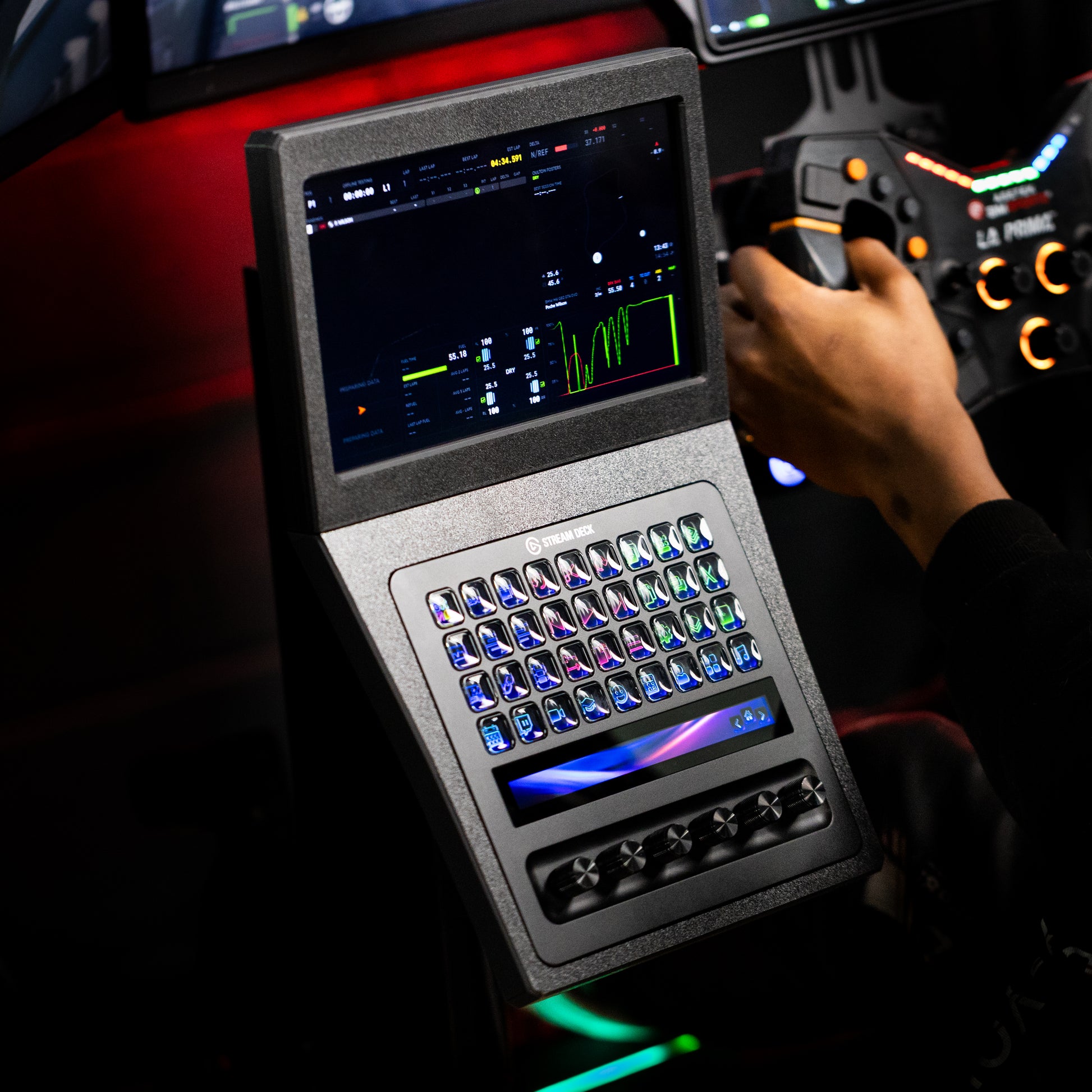
This article explains how to set up your SSG Dashboard Display DV-5, connect it to SimHub, and install your complimentary DNR Premium dashboard profiles.
Table of contents
1. What's in the box?
- SSG Dashboard Display DV-5
- USB-A to USB-C cable
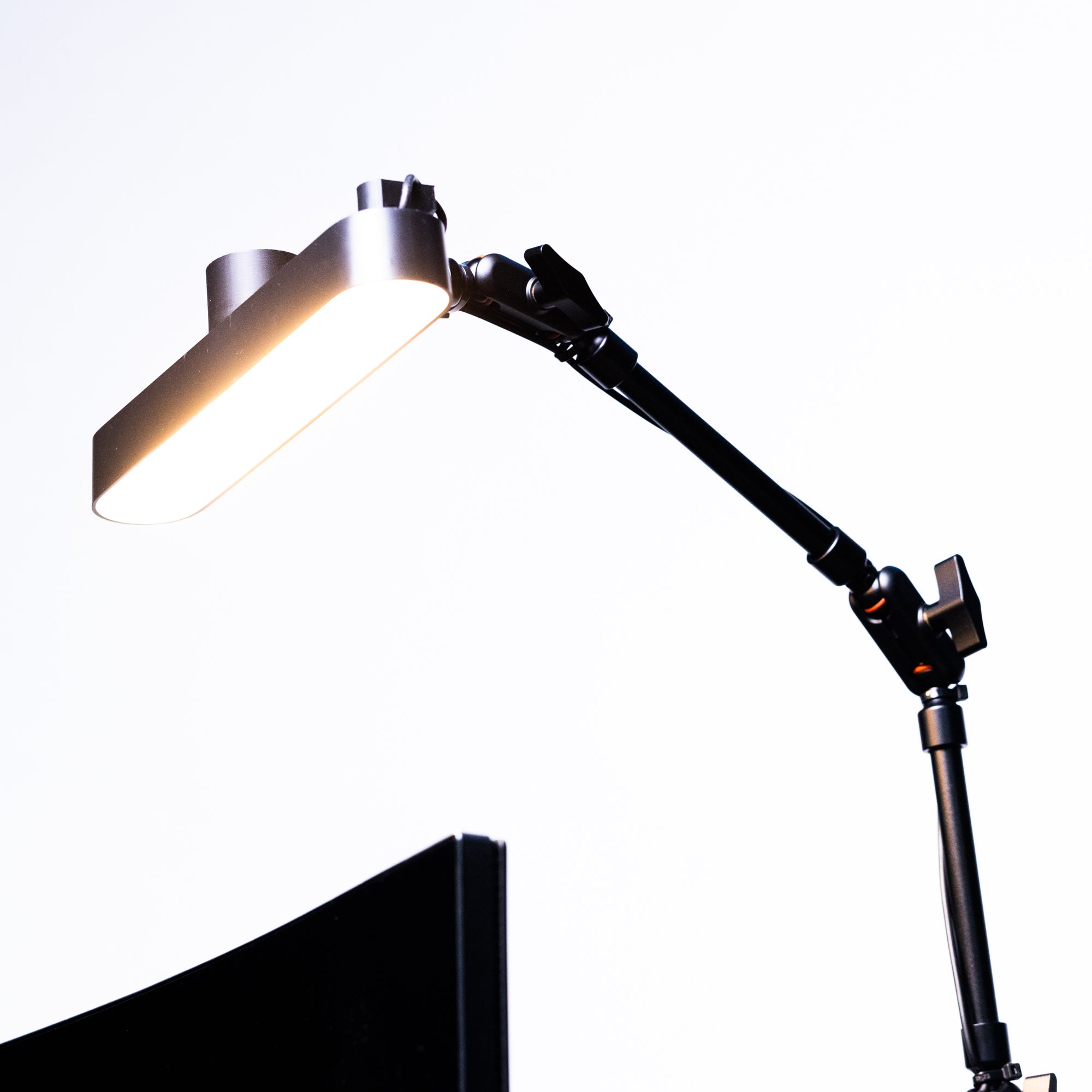
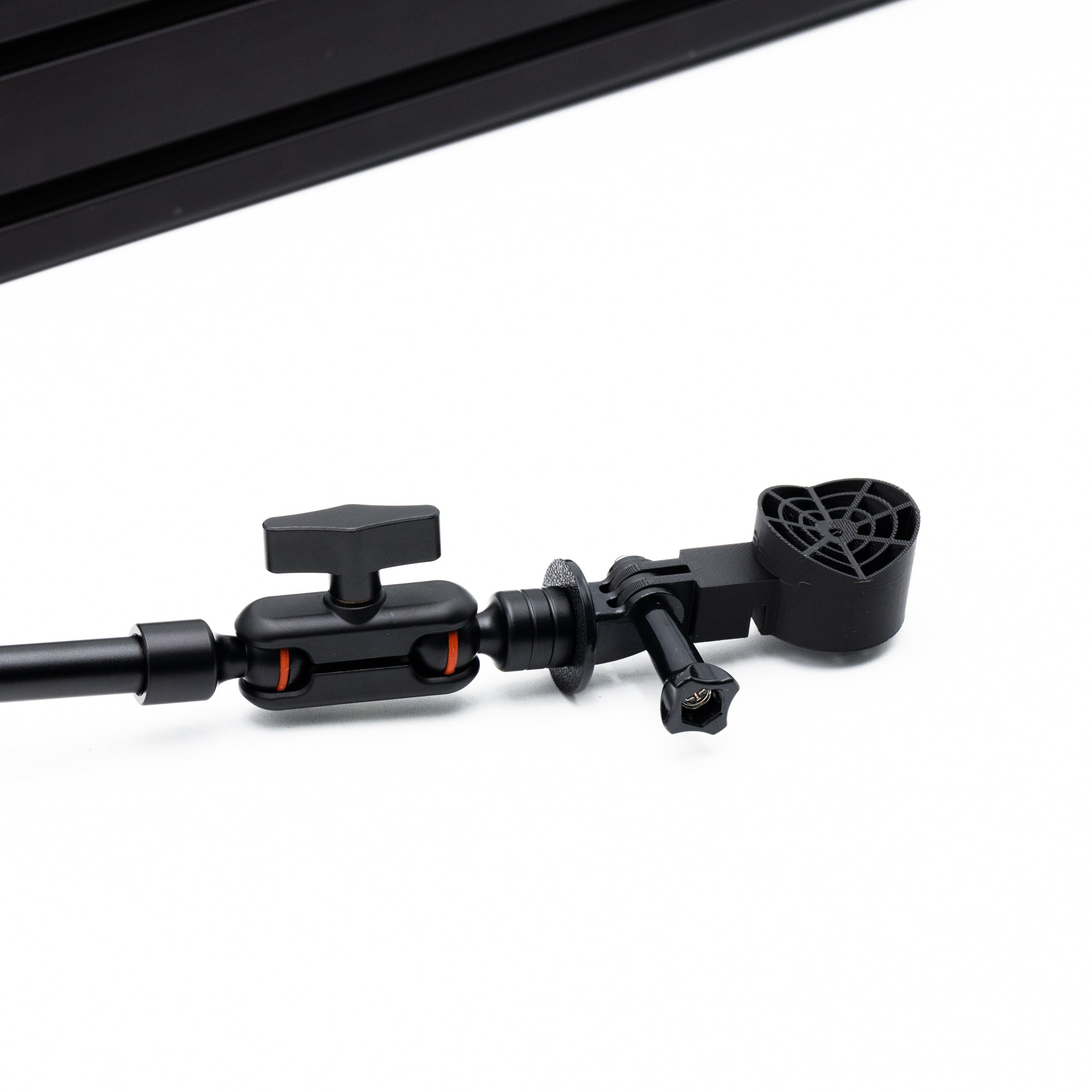
- Mounting hardware
- DNR Premium access code card
Keep your DNR access code card handy. You will need it in section 3.
2. SimHub setup
-
Download and install SimHub. SimHub is free software that sends telemetry from your simulator to the DV-5. Download the latest version from simhubdash.com and run the installer.
Screenshot placeholder: SimHub download page
Connect the DV-5 to your PC. Plug the included USB cable into the DV-5 and into a USB port on your computer. The display powers on automatically. No HDMI cable or external power supply is needed.
-
Open Dash Studio. Launch SimHub and click Dash Studio in the left sidebar. The DV-5 appears as a connected screen device. If it does not appear, try a different USB port.
Screenshot placeholder: Dash Studio with the DV-5 detected
Set the screen resolution. Select the DV-5 in the device list and set the resolution to 800 x 480. Enable the option to start the screen automatically with SimHub.
-
Load a dashboard. Click Add Dashboard and choose a template from the built in library, or import a downloaded dashboard file. Then click Apply to Screen and choose the DV-5.
Screenshot placeholder: applying a dashboard to the DV-5
Test with your simulator. Launch your sim and join a session. Telemetry appears on the DV-5 right away.
3. DNR profile setup
DNR Premium dashboards are included free with every DV-5 and are optimized for its 5 inch display.
Create a DNR account. Register on the DNR website with your email address.
-
Redeem your access code. Log in, open the redeem code section of your account, and enter the code from the card included in your DV-5 box. Your account is upgraded to Premium immediately.
Screenshot placeholder: DNR redeem code screen
Download the DV-5 dashboard pack. In the DNR dashboard library, search for SSG DV-5 and download the pack.
-
Import the profiles into SimHub. Extract the download. In Dash Studio, click Import and select the dashboard files. They appear in your dashboard library, ready to apply to the DV-5.
Screenshot placeholder: importing DNR dashboards into SimHub
Apply and customize. Apply your chosen DNR dashboard to the DV-5. You can adjust data fields, colors, and layout in the SimHub editor at any time.
4. Troubleshooting
The display is not detected by SimHub.
Try a different USB port, ideally one directly on your motherboard rather than a hub. Make sure SimHub is installed before connecting the display.
The screen stays blank during a session.
Confirm SimHub is running and that your game is supported and detected. Check that a dashboard has been applied to the DV-5 screen.
Touch input is not responding.
Enable touch input for the DV-5 in the SimHub screen settings.
Still stuck?
Contact us with your order number and we will help you out.